Group Messages
The Group Messages feature facilitates secure, organized message communication between Patients and a predefined group of members within the Practice. Instead of messaging individual members, Patients can contact the right team, such as Billing, Front Office, or Lab Services, ensuring faster and more consistent responses.
Key Features:
- Allows Patients to contact the appropriate team for their inquiries
- Reduces response delays when individual members are unavailable
- Prevents misdirected or missed Patient communication
- Protects privacy by displaying the Group name instead of the individual member
- Enables Admins to assign, manage, and track the message progress
Follow the steps below to start using the Group Message feature in your Practice.
1. Create Message Groups
Members with the necessary role privilege can create message groups by following the steps below.
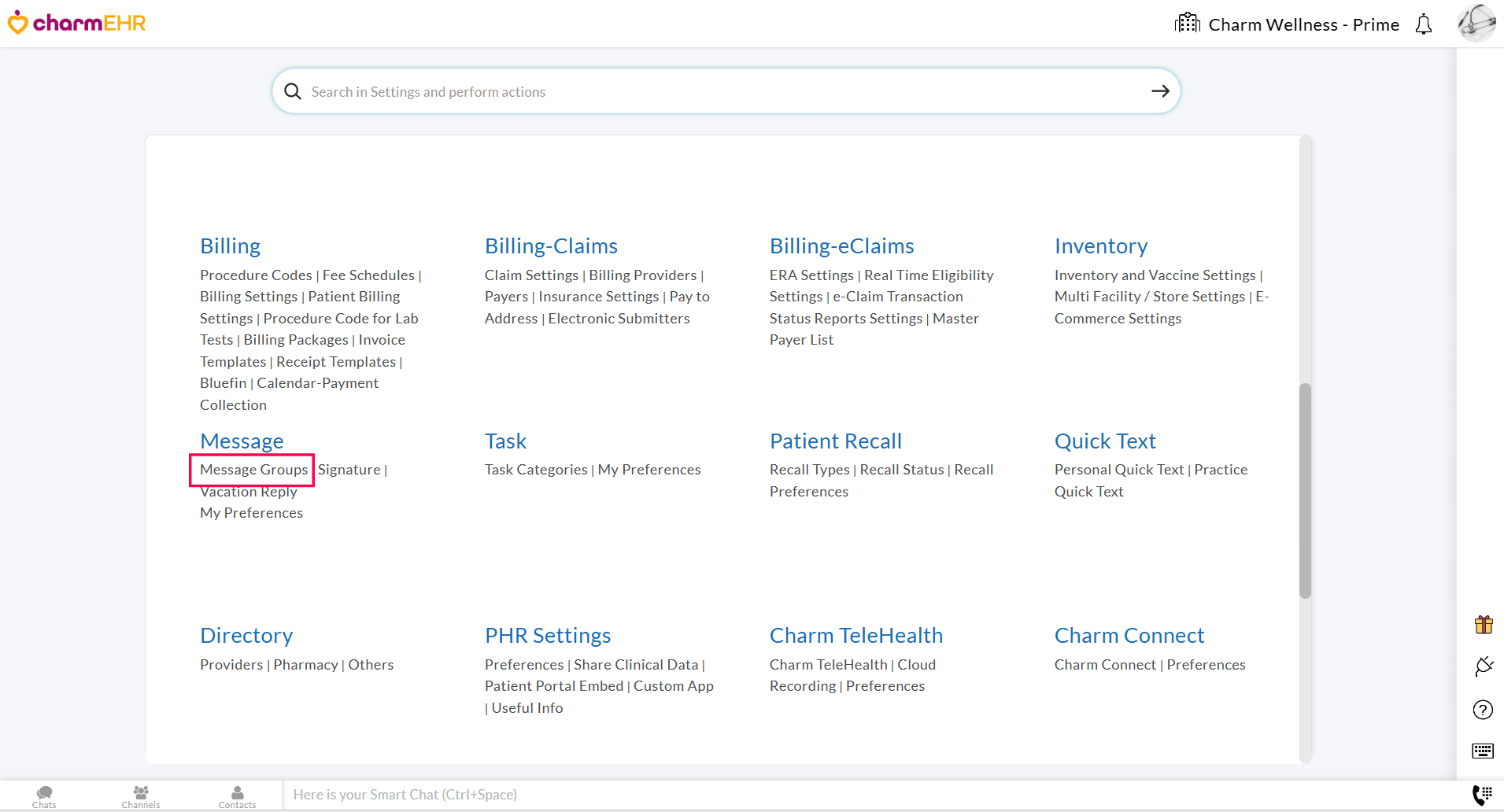
- Navigate to the 'Settings > Messages > Message Groups' section.
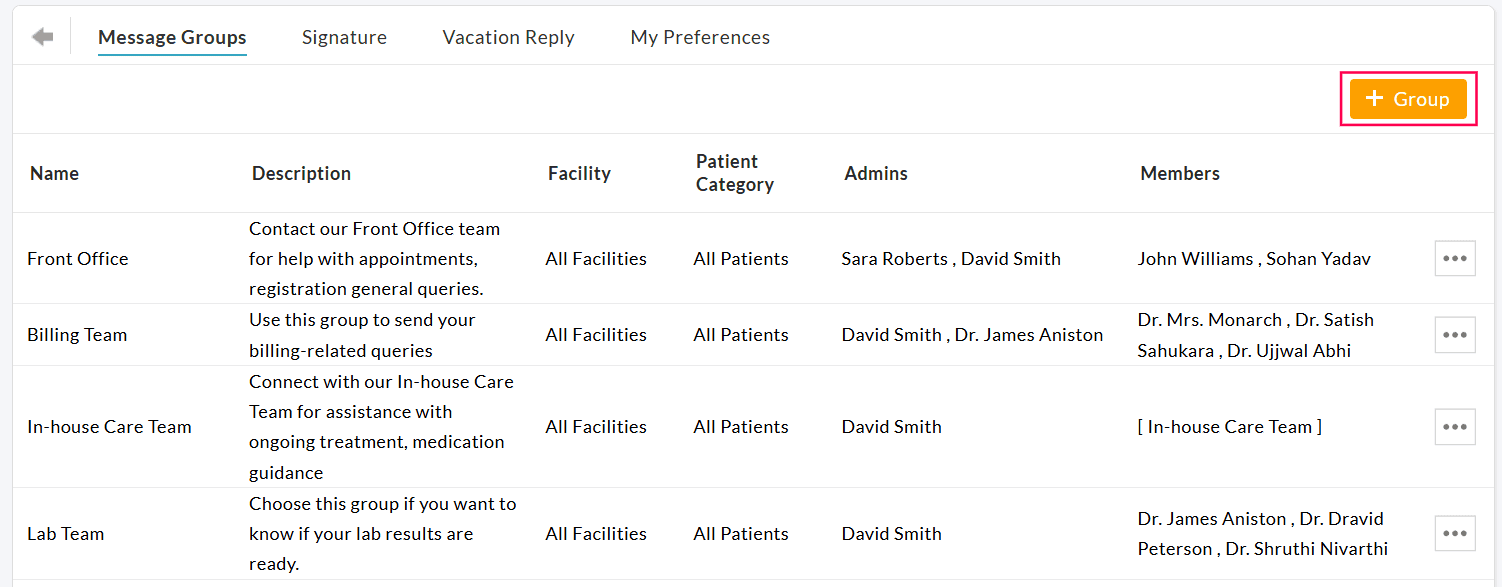
- Click on the '+ Group' button.
- Enter the Group Name (e.g., Billing Team) and give a short Group Description (e.g., Use this group to send your billing-related queries). This description is shown when Patients compose a message from their PHR account and helps them choose the right group for their inquiries.
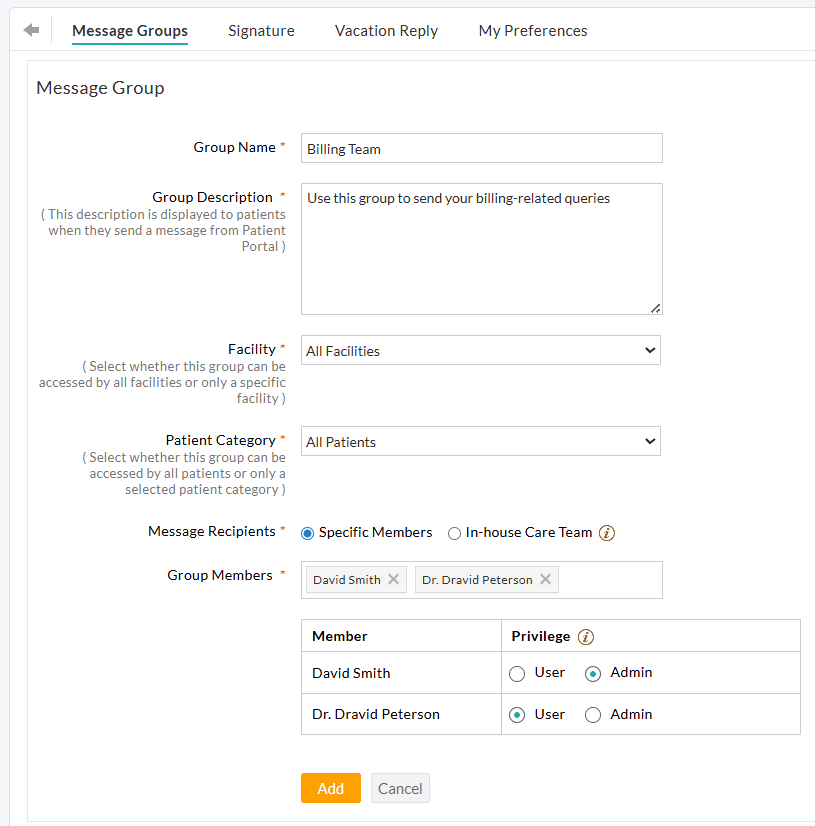
- If your Practice has multiple Facilities, choose whether the group is accessible to Patients of All Facilities or limited to a specific Facility.
- Select the Patient Category allowed to send messages to the group. You can choose from the following options.
- All Patients: The group is available to all Patients.
- Selected Category: The group is available only to a specific Patient Category. Select a specific Patient Category from the list. Only Patients who are a part of the selected Category can send messages to the group (e.g., Diabetes Program Patients).
- Choose the Message Recipients for the group. You can select either 'Specific Members' or 'In-house Care Team'.
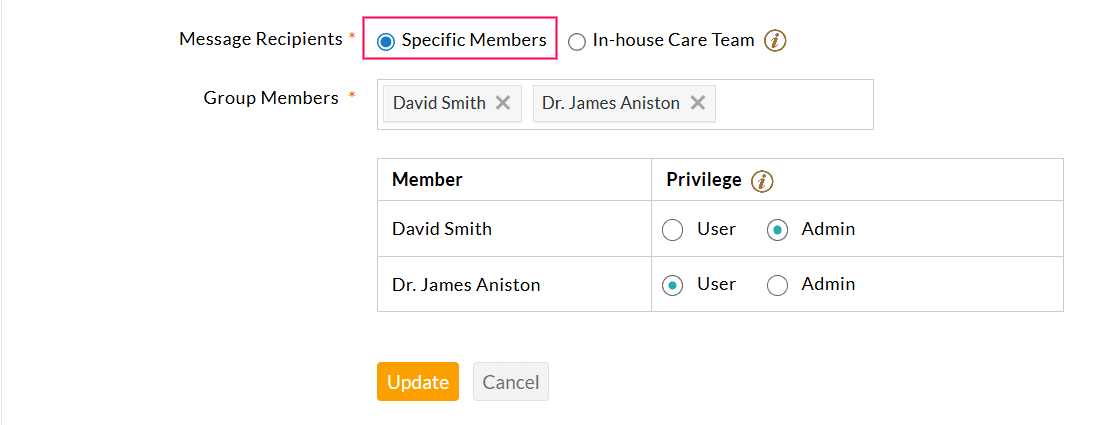
- Specific Members: Search and add the Practice members to the message group. You can assign one of the following privileges to each member.
- Admin: Members with the 'Admin' privilege can view all messages sent to the group, assign or reassign messages to other group members or to themselves, and track the progress.
- User: Members with the 'User' privilege can view and respond only to the messages assigned to them.
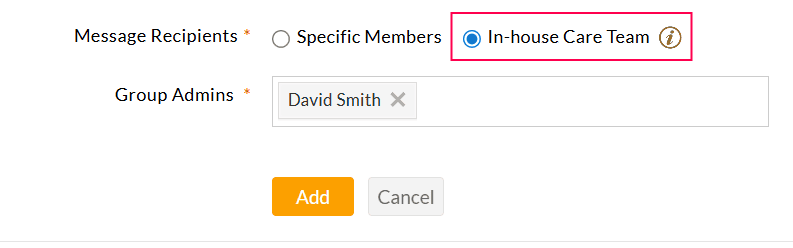
- In-house Care Team: When this option is selected, messages from Patients are sent exclusively to their In-house Care Team members. Only Care Team members can view and respond to the messages. However, for administrative purposes, any Practice member can be assigned as a Group Admin and can access all Patients' messages, even if they are not a part of the Patient's In-house Care Team.
- Specific Members: Search and add the Practice members to the message group. You can assign one of the following privileges to each member.
- Click on the 'Add' button to create the group.
Note:
- A maximum of 10 members can be added to a group.
- Each group must have a unique name.
- Every group must include at least one Admin.
- This feature is available only to Practices subscribed to the paid plan.
2. Configure PHR Messaging Settings
Follow the steps below to allow Patients to send messages through their Charm PHR account.
Navigate to the 'Settings > PHR Settings > Preferences > Message/Documents' section and choose 'Yes' for the 'Allow patients to send messages from PHR' option.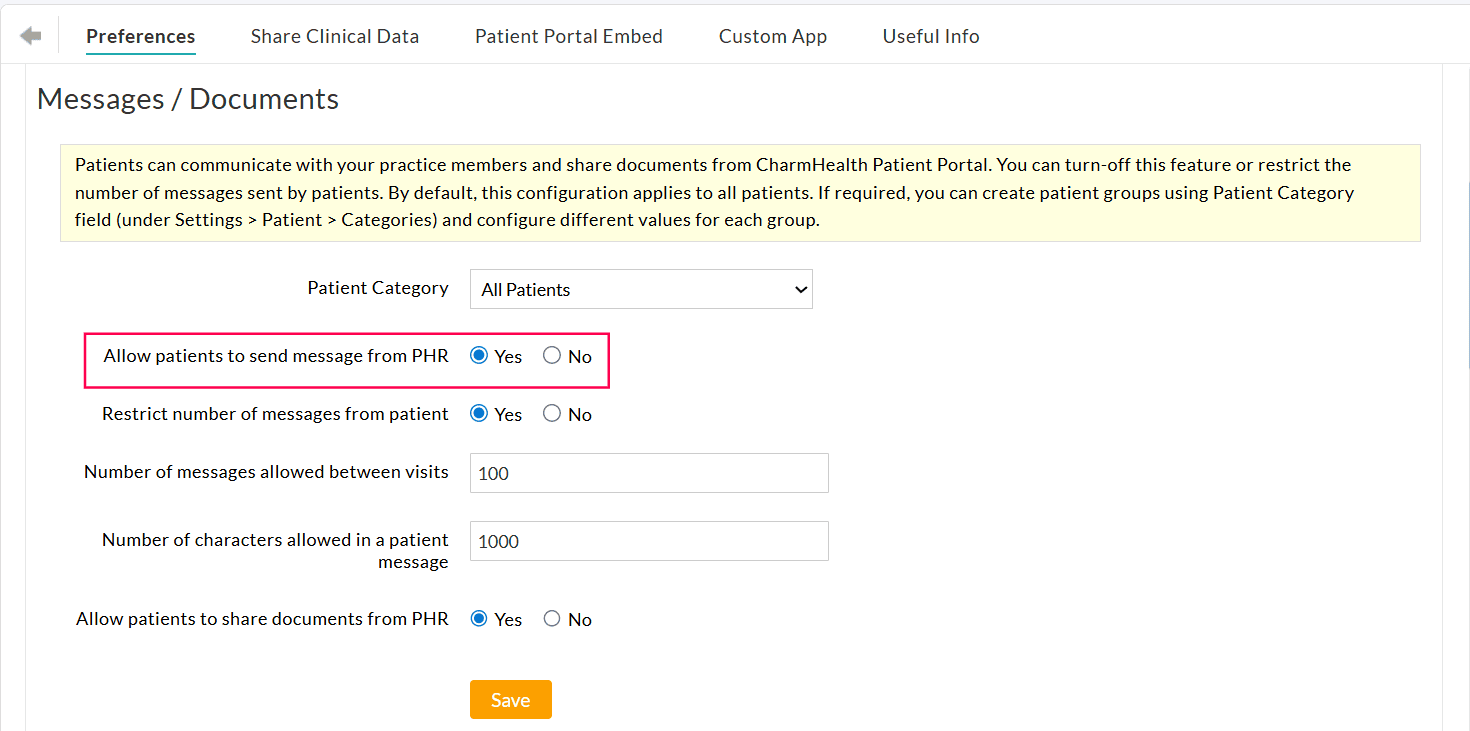
To configure messaging preferences, go to the 'Settings > PHR Settings > Preferences > Patient Message Preferences' section and choose either one of the following options:
- Groups Only - Patients can send messages only to the groups created in your Practice.
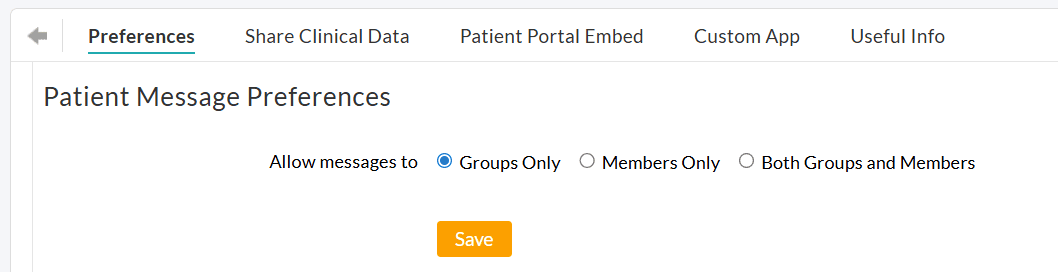
- Members Only - Patients can message only the individual Practice members.
- Both Groups and Members - Patients can message both Groups and individual Practice members.
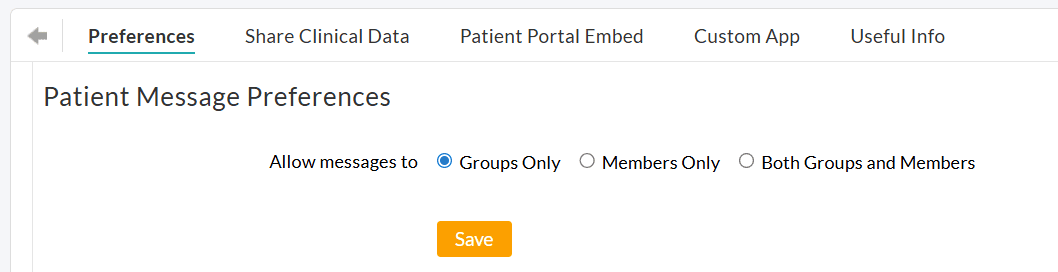
When enabling the Members Only or Both Groups and Members option, select the message recipients as either All Practice Members or only the Patient's In-house Care Team Members.
You can also exclude specific members from receiving Patient messages.
3. Send Message to a Group (By Patient)
Based on your preferences configured in the steps above, Patients can send Messages to a group and/or an individual Practice member from their Charm PHR account by following the steps below.
- Log in to the Charm PHR account.
- Click on the 'Send Message' button in the Quick Menu bar.
- In the 'To' field, the recipients are displayed based on the Practice configuration.
- If the 'Group Only' option is enabled, only message groups are displayed.
- If the 'Members Only' option is enabled, only the individual Practice members are shown.
- If the 'Both Groups and Members' option is enabled, both groups and individual Practice members are shown.
For groups, only those matching the Patient’s Facility and Patient Category (if configured) are displayed.
For members, only those allowed by the 'Message Recipient' settings (All Members or In-house Care Team Only) are shown.
Any excluded members will not appear in the recipient list.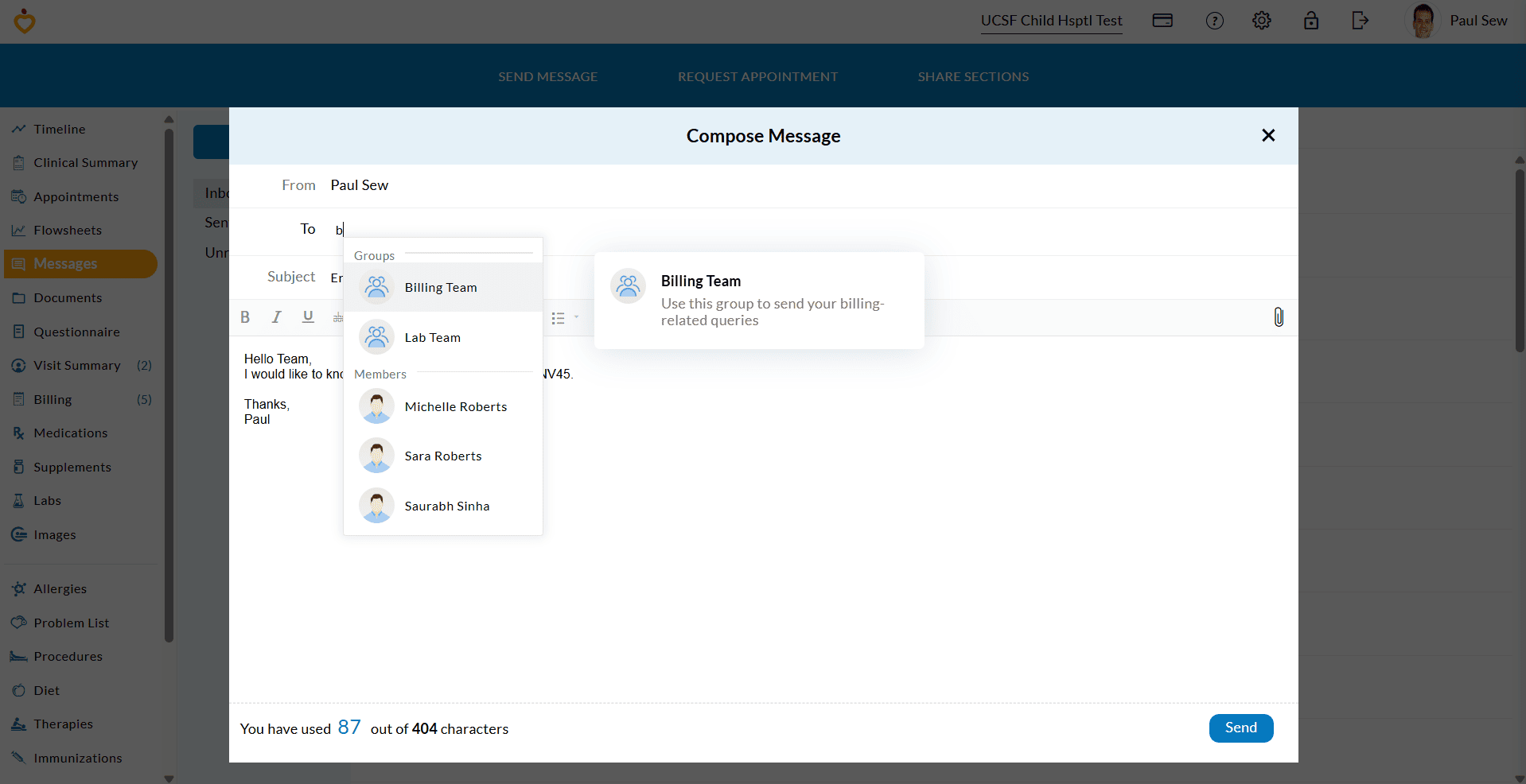
- Patients can select a group that best suits their requirements.
- Compose and send the message to the group.
Patients can view the Practice responses under the 'Messages > Inbox or Unread' section. They can also search for the responses using the Group Name.
From the mPHR App
Patients can also send Group messages from the Charm mPHR app.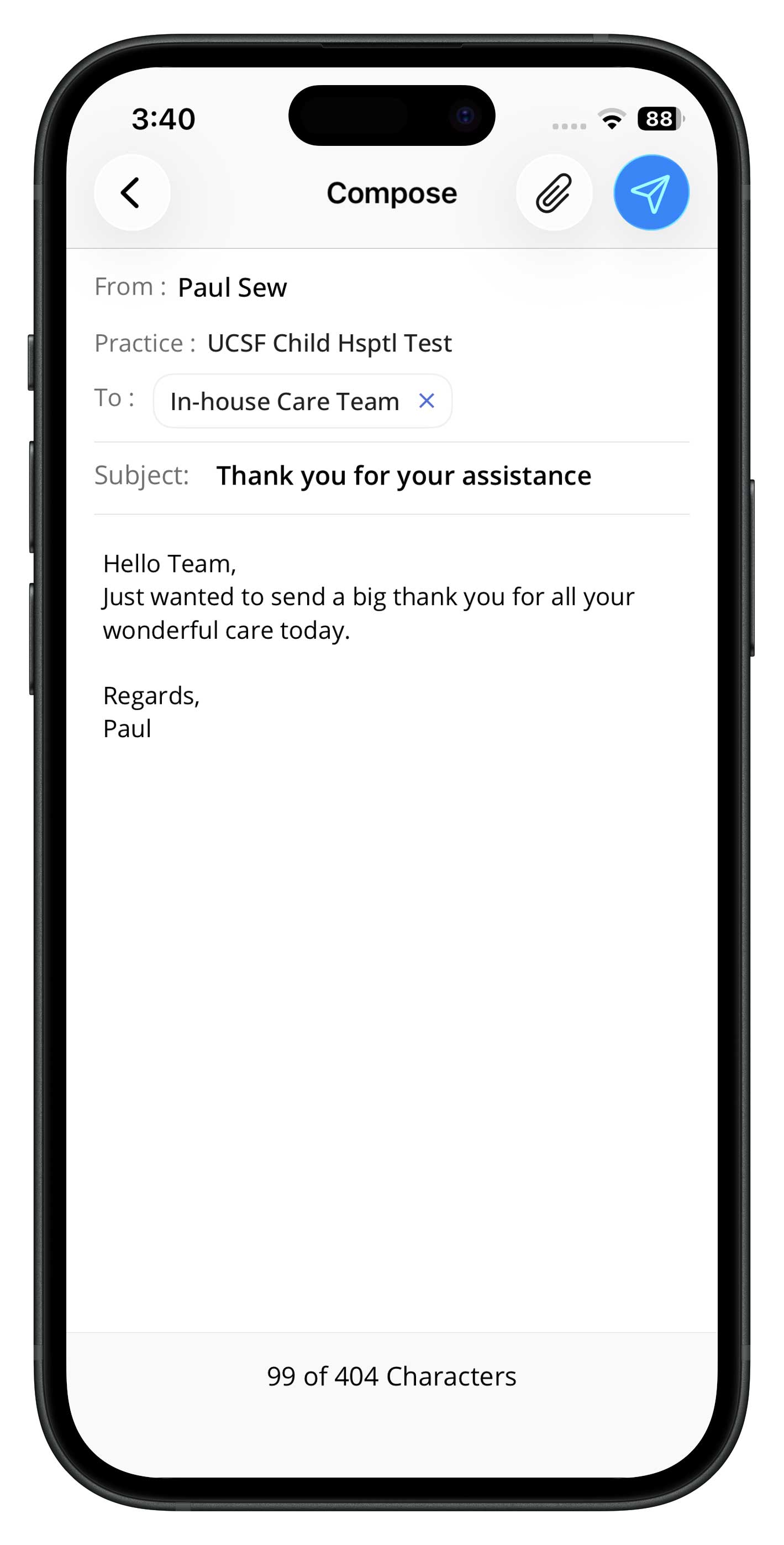
From Custom Branded App
Group Messages are also supported in the Custom Branded Apps with the same workflow.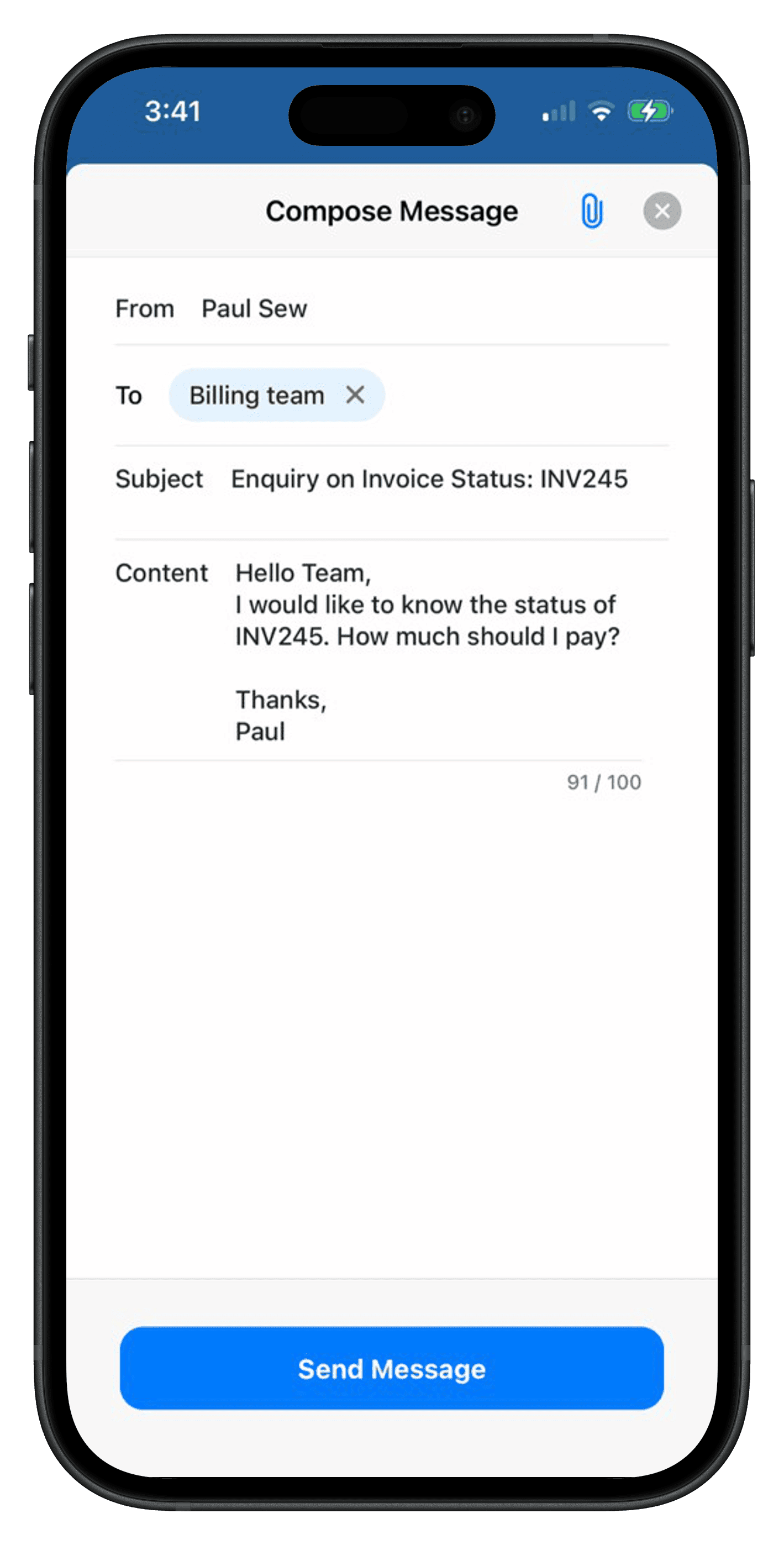
4. Manage Group Messages
Practice Members can manage Group Messages from the 'Messages > Group Messages' section.
- All groups associated with the member are listed here.
- An 'Admin' tag appears next to the Group name for members with Admin privileges.
- Selecting a group displays all Patient messages sent to that group.
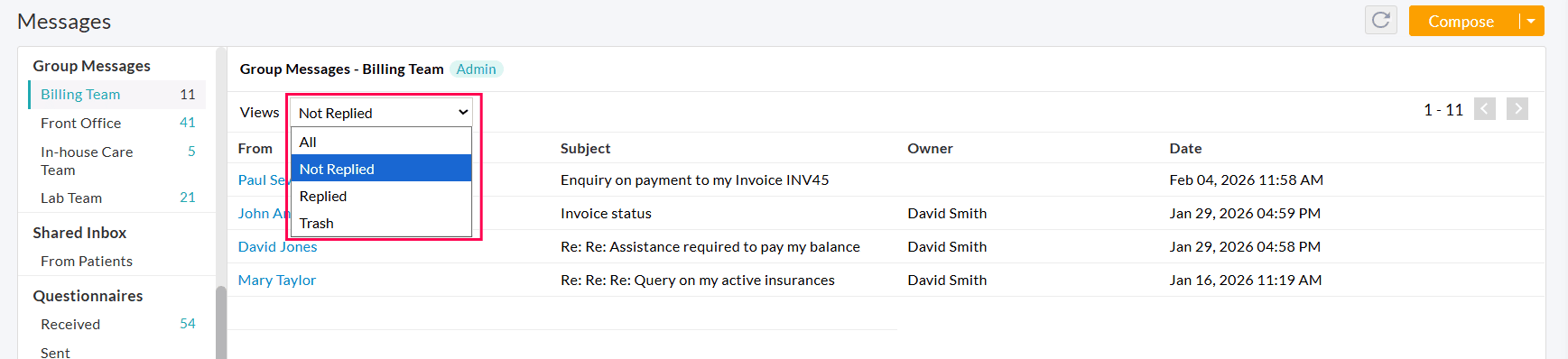
Messages can be filtered by status: All, Not Replied, Replied, or Trash. This feature helps members manage Patient messages effectively.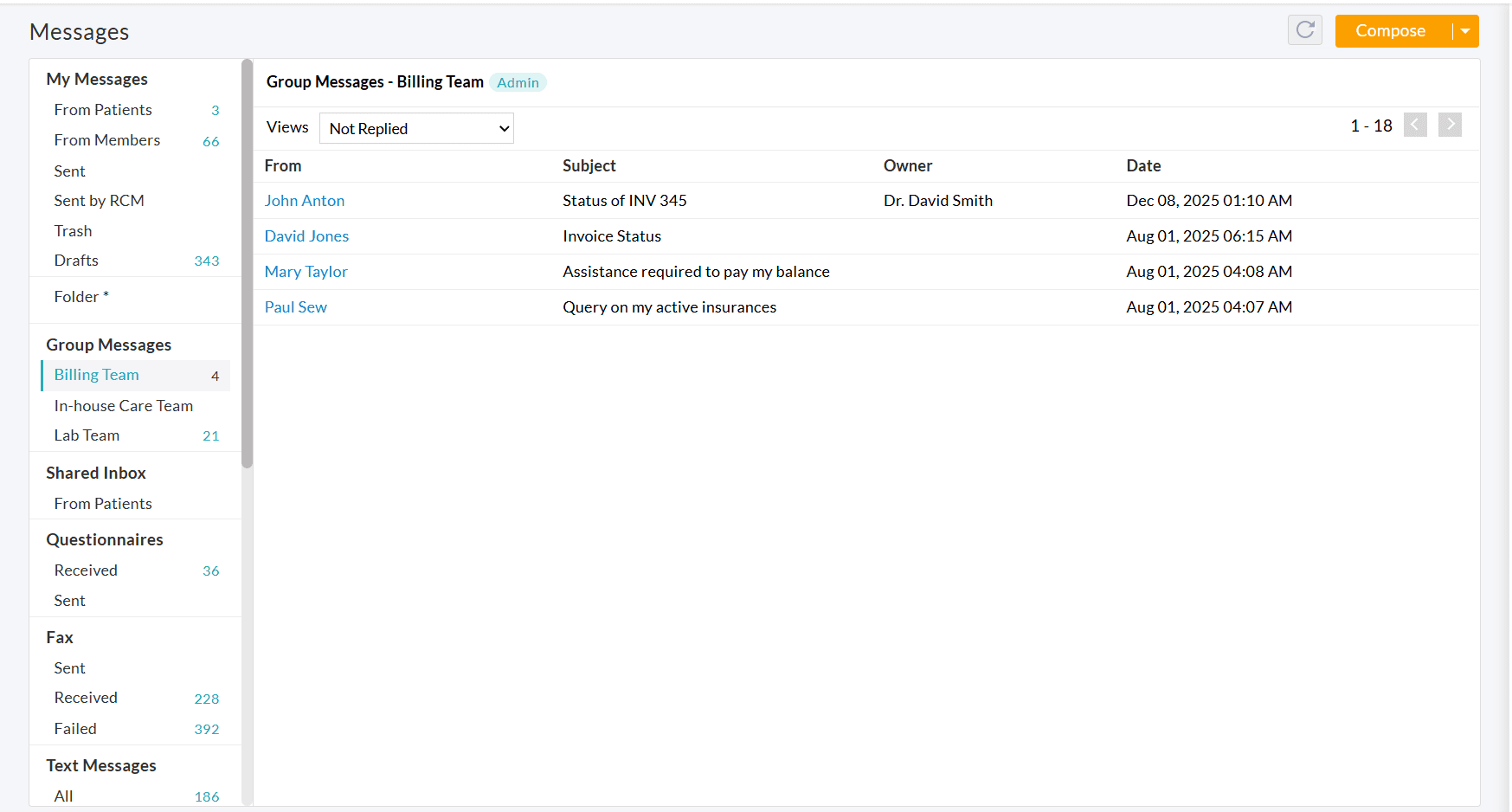
Depending on the configured privileges, members of the Practice can perform the following actions.
If you are an Admin:
- View all messages received in that group
- Reply to Patient messages
- Assign or reassign messages to group members
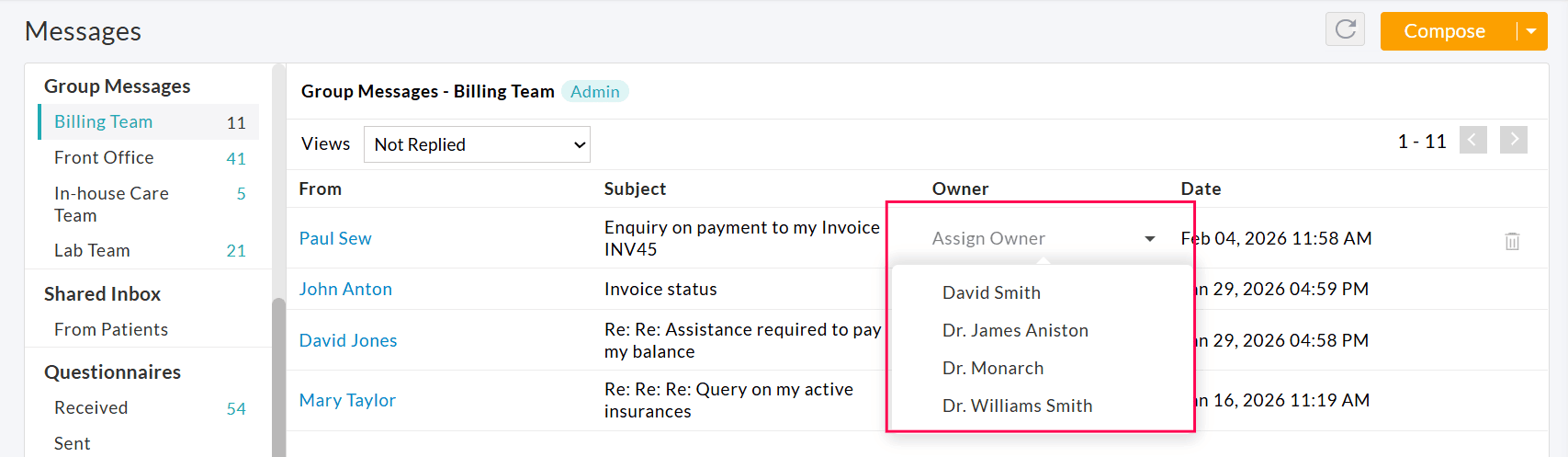
If you are a User:
- View only the messages assigned to you.
- Respond to the assigned messages.
If you are a part of the Patient's In-house Care Team:
- View and reply to your Patient's messages.
Note: All replies to Patients are sent using the Group name, ensuring individual staff identities remain private.
5. Assign Role Privileges
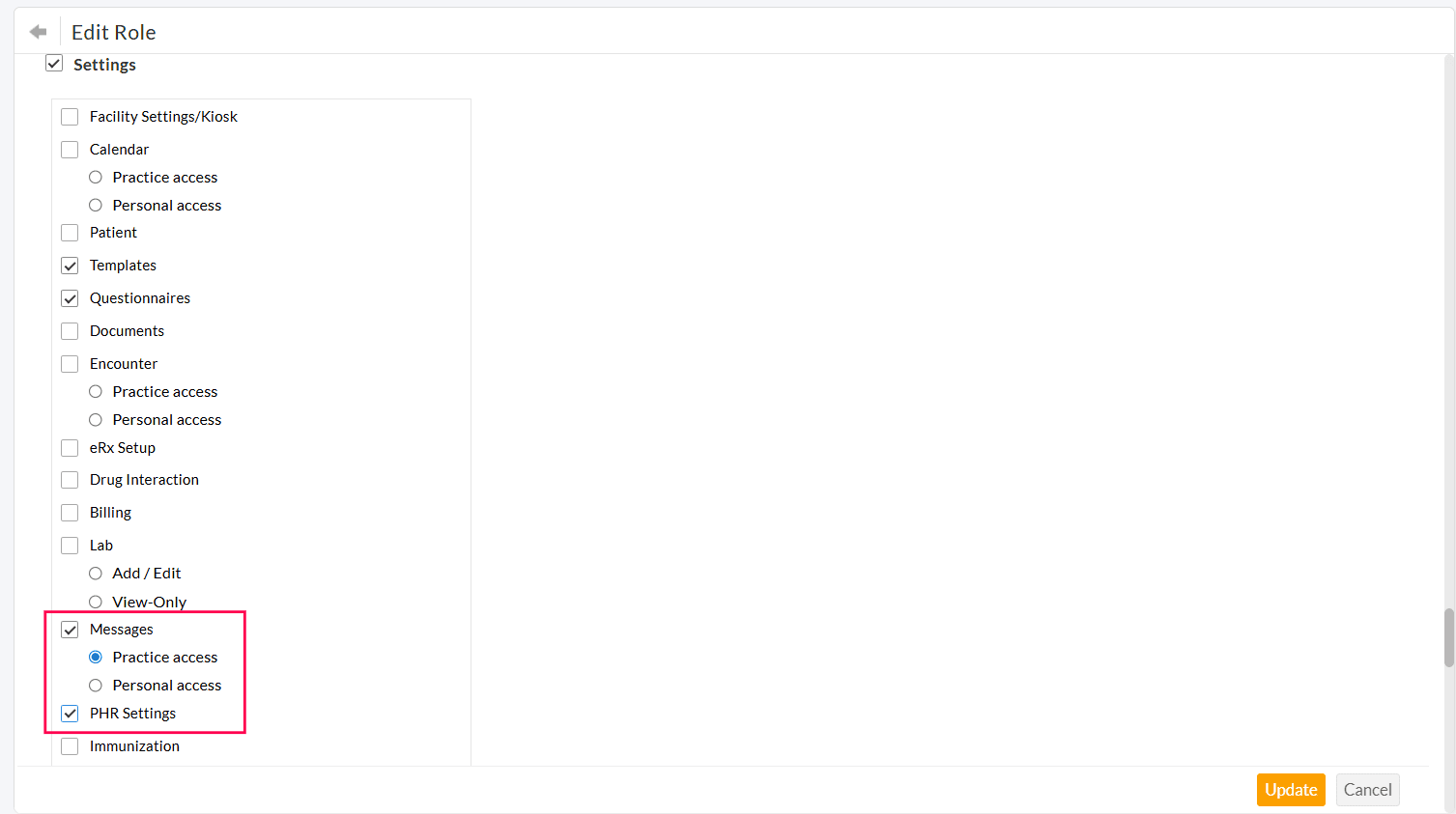
The Practice Admin can configure the role privileges for the Practice members to manage Group Messages under the 'Settings > Facility > Roles' section.
You can edit a role and enable the following privileges.
- Settings > Messages > Practice Access privilege allows members to create and edit Message Groups within the Settings.
- Settings > PHR Settings privilege allows members to edit the PHR Settings.